Portrait Guidelines
Introduction
A portrait is the static character image used in a game to show a character's appearance and expressions in the chat or dialogue interface. The Konado dialogue system can place portraits through divided layout regions, making character positioning flexible and precise. It also includes smooth tween animations so scene changes feel natural.
Actor Positioning
Unlike traditional dialogue systems that use fixed coordinates or coordinate offsets, Konado uses block templates to implement precise and adaptive actor positioning. This saves time otherwise spent manually adjusting actor positions, keeps actors within a reasonable range in dialogue scenes, and improves development efficiency.
This positioning method also allows designers to use guides and similar tools in other design software for actor positioning, without manually adjusting positions inside the game engine.
Actor Position
The screen is divided into several equal sections (minimum 2, default 5). Counting from left to right, actors can be placed from 0/5 to 4/5; for example, 1/5 places the actor on the left side of the screen.
Principle
The component horizontally divides the canvas container of the Control node that carries the actor into division blocks. The number of blocks can be set to 2 or more, and block indices increase from left to right (0 is the far left, division is the far right).
The valid range of character_position (the actor position index) is limited to [1, division-1], preventing visual overflow caused by an actor being fully aligned to the left or right edge. The actor's center is aligned to the block division line.
Asset Guidelines
To make character portraits display correctly in the dialogue interface, please follow the following asset guidelines. The demonstration uses Krita, but other drawing or image-editing software can also be used for adjustment and cropping.
Please download the portrait crop reference template and the portrait positioning reference template first.

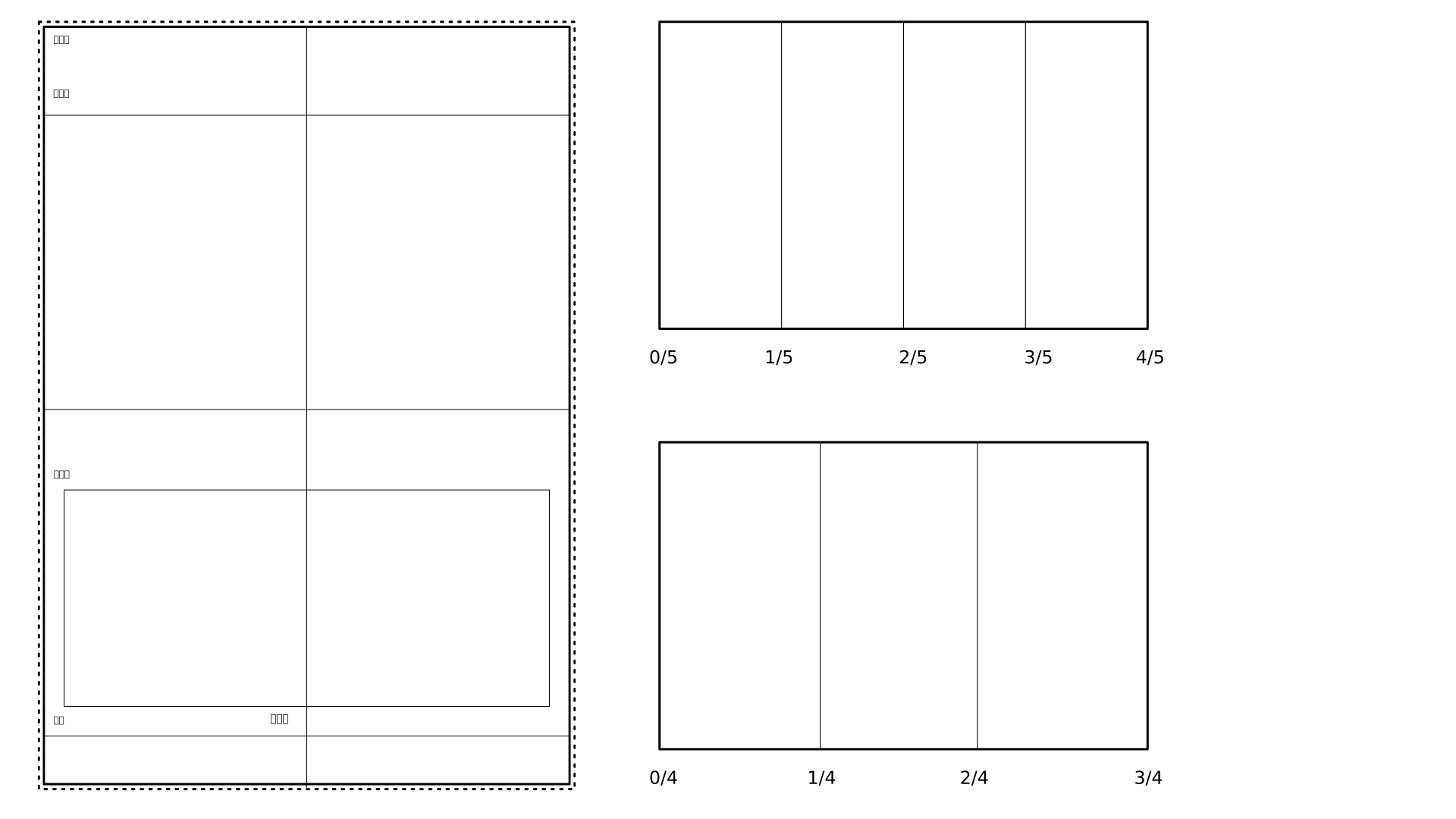
- Format requirements: Assets should be saved as PNG files with transparent backgrounds. They must not contain white edges, black edges, or noisy backgrounds.
- Safe margin: A small buffer is recommended around character edges such as hair tips and clothing corners, to avoid accidental cropping caused by display differences across devices.
Specification
To ensure portraits display correctly in dialogue scenes and fit the UI layout and animation effects, follow these guidelines when creating portrait assets. The demonstration uses Krita, but other drawing software can also be used for adjustment and cropping. Multiple portrait assets can be batch-cropped to keep display results consistent.
Canvas and Overall Boundary Guidelines
Crop frame (canvas outer boundary)
The crop frame is the final canvas boundary of the asset file and the safe range for portrait rendering. All character elements, including hair, decorations, and limbs, must be inside the crop frame to avoid transparent-edge or incomplete-display issues.Height control guides
- Highest-point guide: The top of the character's head, hair accessories, and other top elements must not exceed this guide, preventing the top UI from cropping them.
- Full-body guide: The soles, skirt hem, and other bottom elements should align with or stay below this guide so the character is fully presented in the dialogue interface without "cut-off feet" issues.
Character Body and Positioning Guidelines
Main visible frame (core area)
The rectangle with control points in the image is the main visible area of the character. It is the reference area used by the system for scaling, positioning, and animation. The core parts of the character, including head, torso, and main limbs, must be inside this frame. Secondary elements such as limbs or skirt hems may extend beyond it, but should remain within a reasonable range to avoid clipping during animations.Center point (anchor reference)
The cross at the center of the canvas is the actor positioning anchor and the key reference for movement, fade in/out, and other animation effects. When creating the asset, align the character's center of gravity, such as the midpoint between the feet and the vertical centerline of the body, to this center point. This prevents offset or misalignment in the interface.
Dialogue Box Avoidance Guidelines
The rectangle at the bottom marks the dialogue box area. When creating portrait assets, important character elements such as hands or key decorations must not enter this area, otherwise they may be covered by the dialogue box and affect visual quality and character recognition. The leg treatment in the example can be used as a reference: it keeps the character complete while avoiding the dialogue box area.
Cropping and Export
After adjusting the character position, crop the main part of the character according to the main visible frame (core area), such as cropping the selected area in Krita.
Use Krita to export the cropped image and save it as PNG.
Multiple portrait assets can be batch-exported.